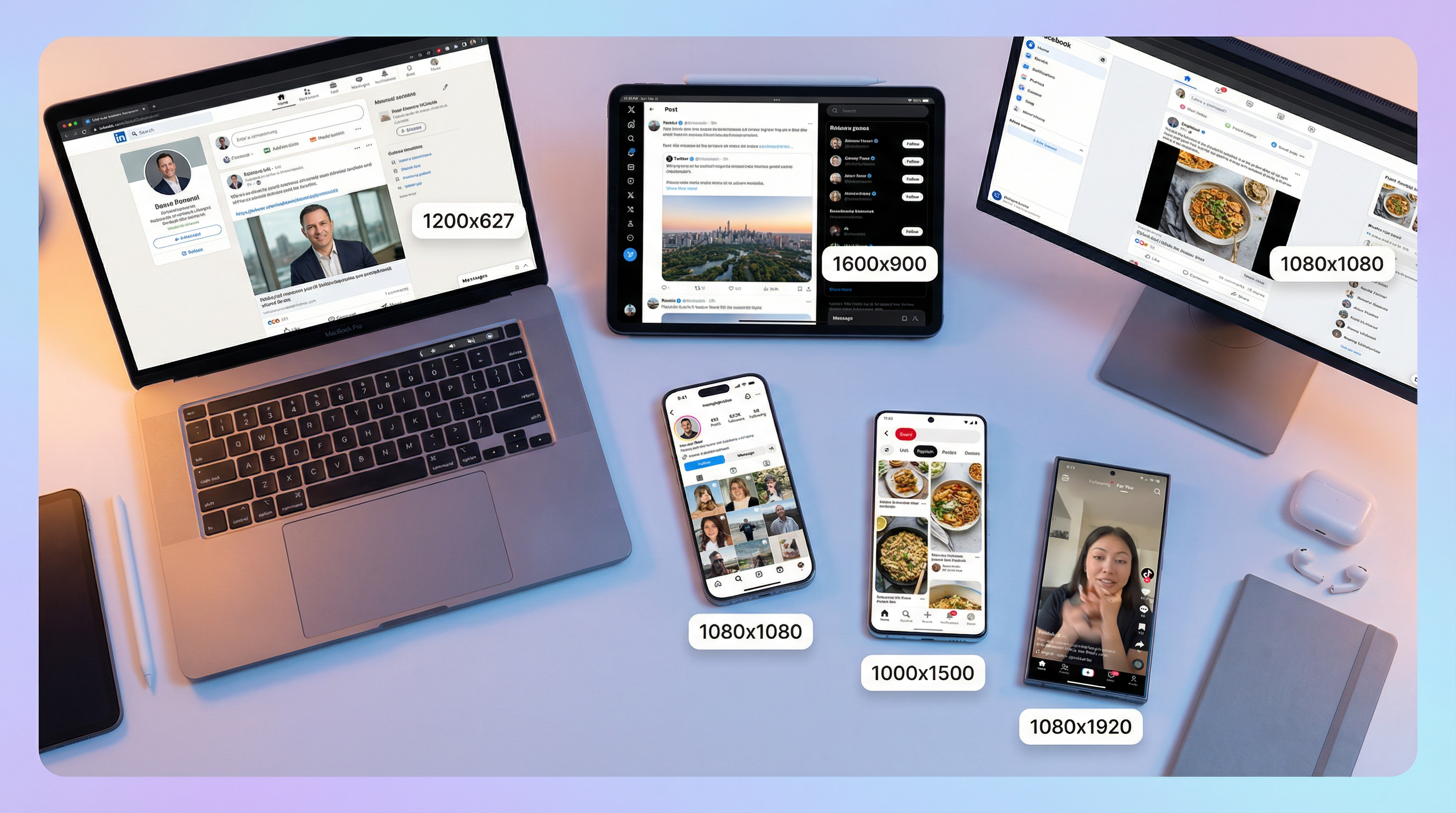
 A professional workspace showing social media images properly sized for Instagram, LinkedIn, X/Twitter, Pinterest, and TikTok
Posting an image to social media sounds simple until you realize that every platform uses different dimensions, aspect ratios, and compression algorithms. Upload a landscape photo to Instagram without resizing, and the platform crops your subject's head off. Share a Pinterest graphic on X/Twitter, and it displays as a thin sliver with black bars. These aren't edge cases—incorrectly sized images are the number one reason social media posts underperform, according to a 2025 Hootsuite study that analyzed over 50,000 brand posts across six platforms.
The problem compounds when you manage multiple accounts. A single product photo might need to exist in five different dimensions: 1080x1350 for Instagram feed, 1080x1920 for Stories, 1200x627 for LinkedIn, 1280x720 for X/Twitter, and 1000x1500 for Pinterest. That is five separate files from one original image, each requiring specific cropping and optimization to look professional.
This guide provides the complete, up-to-date image dimensions for every major social media platform in 2026, explains the technical reasons behind each specification, and shows you how to resize images efficiently using free tools—including batch processing methods that handle all platforms simultaneously.
Why Image Sizing Matters More Than You Think
Social media algorithms evaluate content quality within the first few seconds of posting. Images that match the platform's native dimensions load faster, display without cropping artifacts, and receive higher initial engagement scores. This creates a compounding effect: properly sized images get shown to more people, which generates more engagement, which triggers further algorithmic distribution.
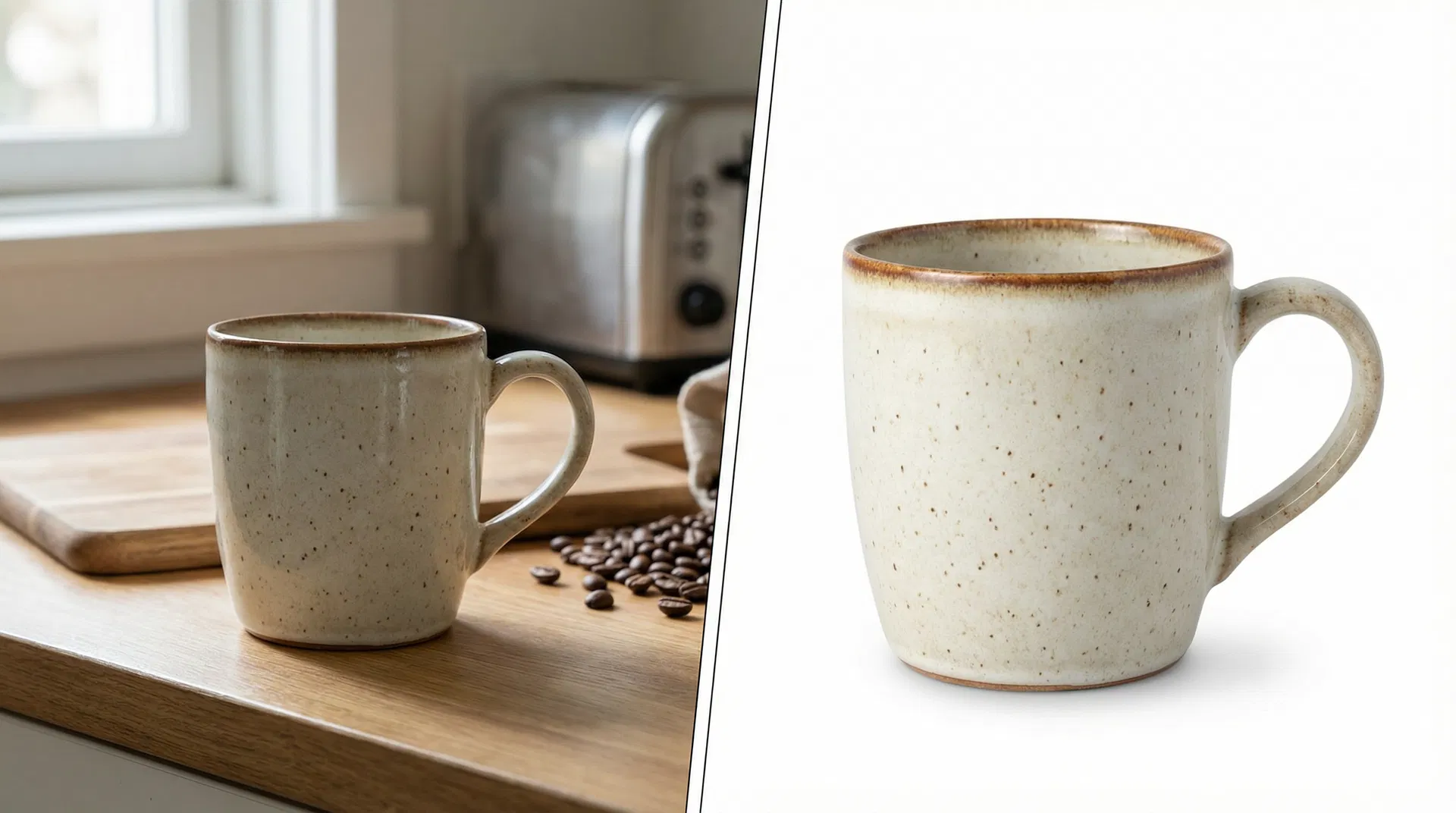
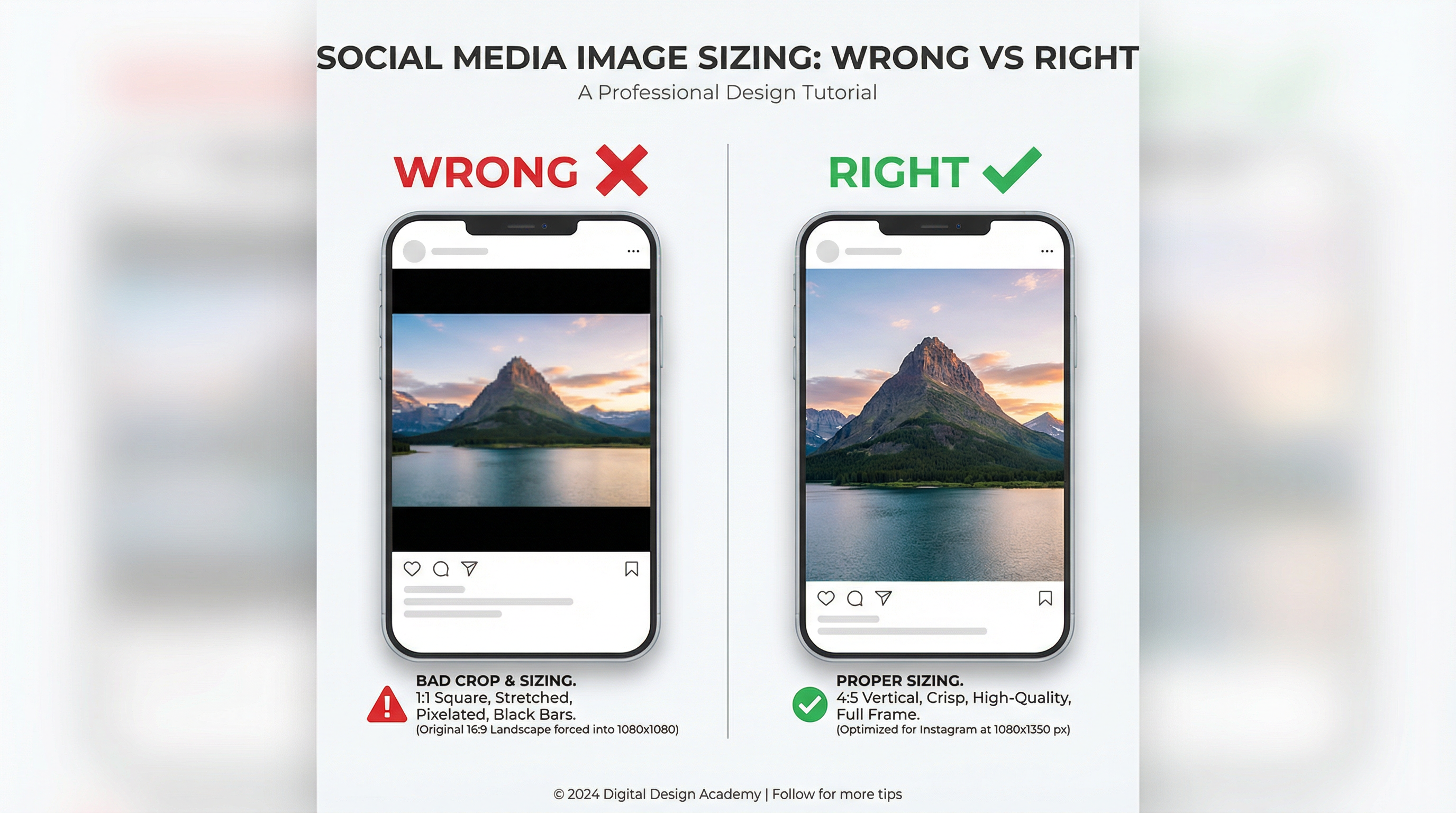 Left: A landscape photo forced into a square frame creates black bars and wasted space. Right: The same photo properly cropped to 4:5 vertical fills the frame and maximizes screen real estate.
Beyond algorithmic considerations, incorrectly sized images create a perception of unprofessionalism. When a brand's Facebook cover photo appears pixelated on desktop or a LinkedIn post image gets awkwardly cropped, it signals carelessness to potential customers. Research from the Stanford Web Credibility Project found that 46% of users assess a company's credibility based on visual design, and image quality is a primary component of that assessment.
The technical reason platforms are strict about dimensions relates to rendering performance. Social media apps pre-allocate screen space for images before they finish loading. When an image doesn't match the expected aspect ratio, the app must either crop it (losing content), letterbox it (adding bars), or stretch it (causing distortion). None of these outcomes serve the content creator well.
Complete Social Media Image Sizes for 2026
The following specifications reflect the most current requirements as of March 2026. Platform dimensions change periodically—Instagram alone has updated its recommended sizes three times since 2024—so bookmark this guide and check back before major campaigns.
Instagram Image Sizes
Instagram remains the most dimension-sensitive platform because it displays images in three different contexts: the main feed, the profile grid, and full-screen Stories/Reels. Each context uses different aspect ratios, and your images need to work across all three.
| Image Type | Dimensions (px) | Aspect Ratio | Notes |
|---|---|---|---|
| Profile Photo | 320 x 320 | 1:1 | Displays as circle; center your subject |
| Feed Post (Square) | 1080 x 1080 | 1:1 | Classic format, works everywhere |
| Feed Post (Vertical) | 1080 x 1350 | 4:5 | Best for engagement; takes up more screen |
| Feed Post (Landscape) | 1080 x 566 | 1.91:1 | Least screen real estate; avoid if possible |
| Carousel | 1080 x 1350 | 4:5 | All slides must use same aspect ratio |
| Stories & Reels | 1080 x 1920 | 9:16 | Full-screen vertical; safe area 1080x1610 |
| Grid Display | 1012 x 1350 | 3:4 | How posts appear on your profile grid |
The most important takeaway for Instagram is that vertical 4:5 images (1080x1350) consistently outperform square and landscape formats. Vertical posts occupy approximately 20% more screen real estate in the feed compared to square posts, which translates directly to higher engagement rates. Instagram's own creator documentation now recommends 4:5 as the default format for feed posts.
One frequently overlooked detail: Instagram's grid view crops all posts to a 3:4 aspect ratio regardless of the original format. If you post a landscape image, the grid view will crop it significantly. Plan your compositions with both the feed view and grid view in mind, keeping critical elements centered.
Facebook Image Sizes
Facebook handles images differently on desktop and mobile, which creates additional complexity. The platform also uses distinct dimensions for personal profiles, business pages, groups, and ads.
| Image Type | Dimensions (px) | Aspect Ratio | Notes |
|---|---|---|---|
| Profile Photo | 320 x 320 | 1:1 | Displays 176x176 (desktop), 196x196 (mobile) |
| Cover Photo | 851 x 315 | 2.7:1 | Minimum 400x150; keep under 100KB |
| Feed Post (Landscape) | 1080 x 566 | 1.91:1 | Standard link preview format |
| Feed Post (Vertical) | 1080 x 1359 | 4:5 | Maximum vertical ratio allowed |
| Feed Post (Square) | 1080 x 1080 | 1:1 | Universal safe choice |
| Stories & Reels | 1080 x 1920 | 9:16 | Same as Instagram Stories |
| Event Cover | 1200 x 628 | 1.91:1 | Used for event pages |
Facebook's cover photo is particularly tricky because it displays at different dimensions on desktop (820x312) versus mobile (640x360). The safe approach is to upload at 851x315 and ensure critical elements like text and logos are centered within the mobile-visible area. Avoid placing important content in the outer 100 pixels on either side.
For feed posts, Facebook's algorithm currently favors vertical content (4:5 ratio) on mobile devices, similar to Instagram. However, link preview images still display in landscape (1.91:1) format, so if your post includes a URL, optimize the Open Graph image at 1200x630 pixels for the best preview appearance.
X (Twitter) Image Sizes
X has simplified its image handling significantly since the platform's rebrand. The current specifications prioritize widescreen formats that complement the platform's text-heavy feed.
| Image Type | Dimensions (px) | Aspect Ratio | Notes |
|---|---|---|---|
| Profile Photo | 400 x 400 | 1:1 | Displays as circle |
| Header/Banner | 1500 x 500 | 3:1 | 60px may be cropped top/bottom |
| In-Feed (Landscape) | 1280 x 720 | 16:9 | Recommended default |
| In-Feed (Vertical) | 720 x 1280 | 9:16 | Displays with crop in timeline |
| In-Feed (Square) | 1080 x 1080 | 1:1 | Safe universal option |
| Card Image | 1200 x 628 | 1.91:1 | For link previews (Twitter Cards) |
X supports images up to 5MB on mobile and 15MB on web. The platform accepts JPG, PNG, and GIF formats but does not support WebP. If you're using WebP images elsewhere, you'll need to convert them to JPEG or PNG before posting to X. TrustedToolkit's free image converter handles this conversion instantly without quality loss.
LinkedIn Image Sizes
LinkedIn's professional context demands higher-quality images than most social platforms. The platform is also unique in having separate specifications for personal profiles and company pages.
| Image Type | Dimensions (px) | Aspect Ratio | Notes |
|---|---|---|---|
| Profile Photo | 400 x 400 | 1:1 | Recommended minimum; max 8MB |
| Personal Cover | 1584 x 396 | 4:1 | Crops differently on mobile vs desktop |
| Company Logo | 400 x 400 | 1:1 | Square format |
| Company Cover | 1128 x 191 | ~6:1 | Very wide; keep text minimal |
| Post (Landscape) | 1200 x 627 | 1.91:1 | Standard post format |
| Post (Vertical) | 720 x 900 | 4:5 | Growing in popularity |
| Post (Square) | 1200 x 1200 | 1:1 | Works well for infographics |
| Article Cover | 1200 x 644 | 1.86:1 | For LinkedIn articles |
LinkedIn's company page cover image (1128x191) is one of the most challenging dimensions in social media. The extreme width-to-height ratio means you have very limited vertical space for content. Use this space for brand colors, subtle patterns, or a tagline—avoid detailed imagery that won't be legible at this aspect ratio.
Pinterest Image Sizes
Pinterest is the only major platform where vertical images are not just preferred but essential. The platform's card-based layout rewards tall, narrow images that dominate the feed.
| Image Type | Dimensions (px) | Aspect Ratio | Notes |
|---|---|---|---|
| Profile Photo | 165 x 165 | 1:1 | Small display size |
| Standard Pin | 1000 x 1500 | 2:3 | Optimal engagement format |
| Idea Pin | 1080 x 1920 | 9:16 | Full-screen vertical |
| Board Cover | 600 x 600 | 1:1 | Square thumbnail |
| Infographic Pin | 1000 x 3000 | 1:3 | Long-form content pins |
The 2:3 aspect ratio (1000x1500) is Pinterest's sweet spot. Pins at this ratio receive the highest engagement rates and display optimally in the platform's masonry grid layout. Avoid square images on Pinterest—they take up less visual space and consistently underperform compared to vertical formats.
YouTube Image Sizes
YouTube's image requirements primarily apply to channel branding and video thumbnails rather than in-feed posts.
| Image Type | Dimensions (px) | Aspect Ratio | Notes |
|---|---|---|---|
| Profile Photo | 800 x 800 | 1:1 | Displays at various sizes |
| Channel Banner | 2560 x 1440 | 16:9 | Safe area: 1546x423 (center) |
| Video Thumbnail | 1280 x 720 | 16:9 | Critical for click-through rate |
| Podcast Thumbnail | 1280 x 1280 | 1:1 | For podcast playlists |
YouTube's channel banner is the most complex social media image to design because it displays at radically different sizes across TV, desktop, tablet, and mobile. The "safe area" where content is guaranteed to be visible across all devices is only 1546x423 pixels in the center of the 2560x1440 canvas. Design your banner with critical elements (channel name, tagline, schedule) within this safe zone.
TikTok and Threads Image Sizes
| Platform | Image Type | Dimensions (px) | Aspect Ratio |
|---|---|---|---|
| TikTok | Profile Photo | 200 x 200 | 1:1 |
| TikTok | Video/Carousel | 1080 x 1920 | 9:16 |
| Threads | Profile Photo | 640 x 640 | 1:1 |
| Threads | Post Image | 1440 x 1920 | 3:4 |
| Bluesky | Profile Photo | 1000 x 1000 | 1:1 |
| Bluesky | Banner | 3000 x 1000 | 3:1 |
Understanding Aspect Ratios: The Key to Multi-Platform Publishing
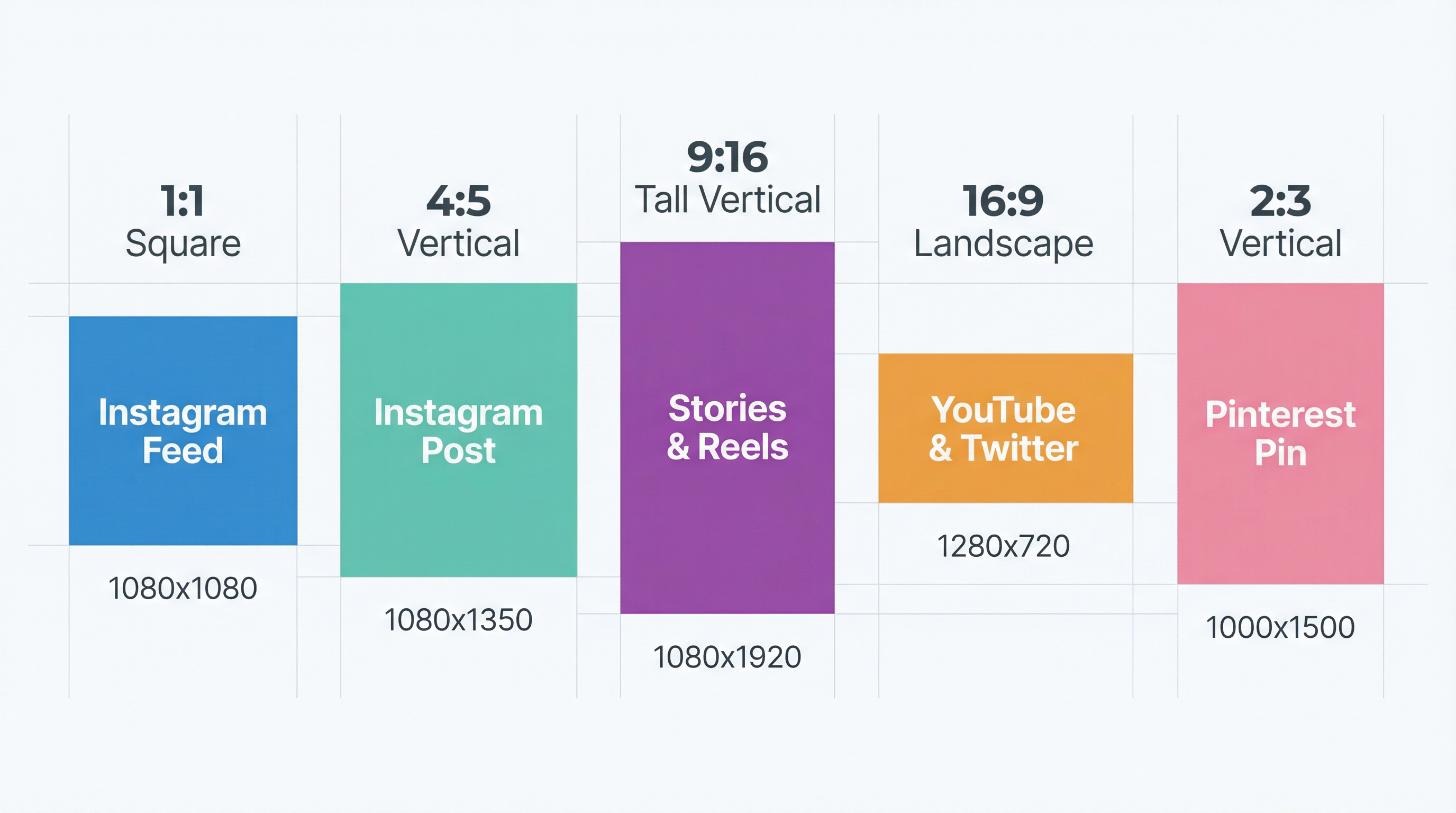 The five most common social media aspect ratios: 1:1 (Instagram Feed), 4:5 (Instagram Post), 9:16 (Stories & Reels), 16:9 (YouTube & Twitter), and 2:3 (Pinterest Pin)
Rather than memorizing dozens of pixel dimensions, understanding five core aspect ratios covers approximately 90% of social media use cases. When you shoot or design content with these ratios in mind, resizing becomes a matter of scaling rather than cropping.
1:1 (Square) is the universal safe format. Every major platform supports square images, and they display predictably across devices. Use 1080x1080 as your baseline square dimension—it meets or exceeds the requirements for Instagram, Facebook, X, and LinkedIn.
4:5 (Vertical) is the current engagement champion for feed posts. At 1080x1350, this format maximizes screen real estate on mobile devices where the majority of social media consumption occurs. Instagram, Facebook, and LinkedIn all support this ratio.
9:16 (Full Vertical) is the standard for Stories, Reels, and TikTok. At 1080x1920, this matches the native screen ratio of modern smartphones. Any content designed for full-screen mobile viewing should use this ratio.
16:9 (Landscape) remains the standard for video content, YouTube thumbnails, and X/Twitter images. At 1280x720 or 1920x1080, this ratio is also the default for most cameras and screen recordings.
2:3 (Pinterest Vertical) is specific to Pinterest but critical for that platform's success. At 1000x1500, this ratio provides the optimal balance of vertical dominance and content readability in Pinterest's grid layout.
How to Resize Images: Step-by-Step Methods
Method 1: Free Online Tools (No Software Required)
The fastest way to resize images for social media is using browser-based tools that handle the conversion instantly. TrustedToolkit's free image converter supports batch resizing with preset dimensions for every major platform. Upload your image, select the target platform, and download the properly sized version in seconds.
For compression after resizing, TrustedToolkit's image compressor reduces file sizes by 40-80% without visible quality loss. This is particularly important for platforms like Facebook and X that apply aggressive compression to uploaded images—starting with a well-optimized file produces better results after the platform's own compression pass.
Method 2: Batch Resizing for Multiple Platforms
When you need the same image in five or more sizes, manual resizing becomes impractical. The most efficient workflow is:
-
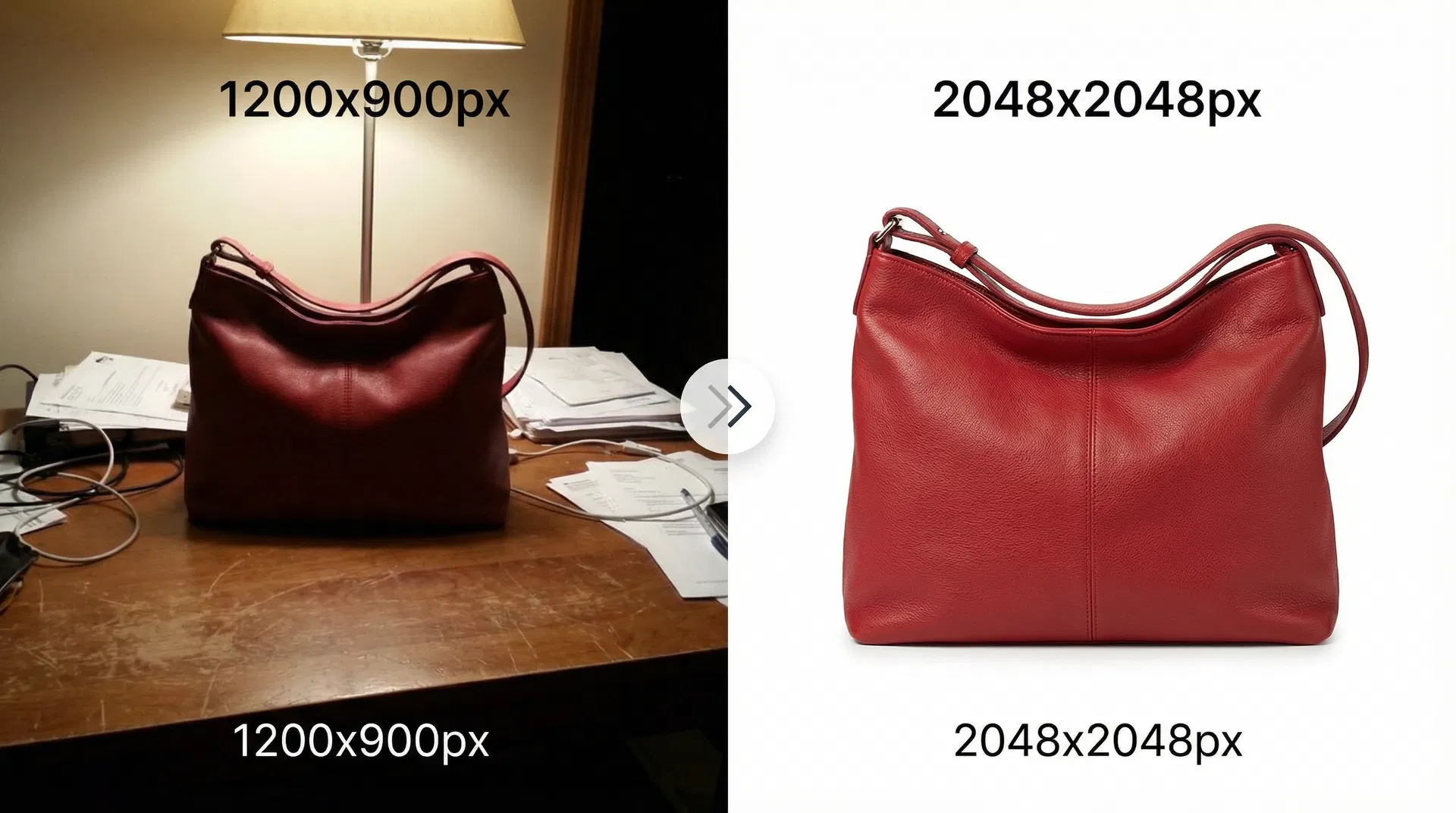
Start with the largest dimension you need. For most content, this means shooting or designing at 2560x1440 (YouTube banner size) or at minimum 2000x2000 pixels.
-
Crop for each aspect ratio first, then resize. Cropping determines composition; resizing determines file dimensions. Always crop before you resize to maintain control over what appears in the final image.
-
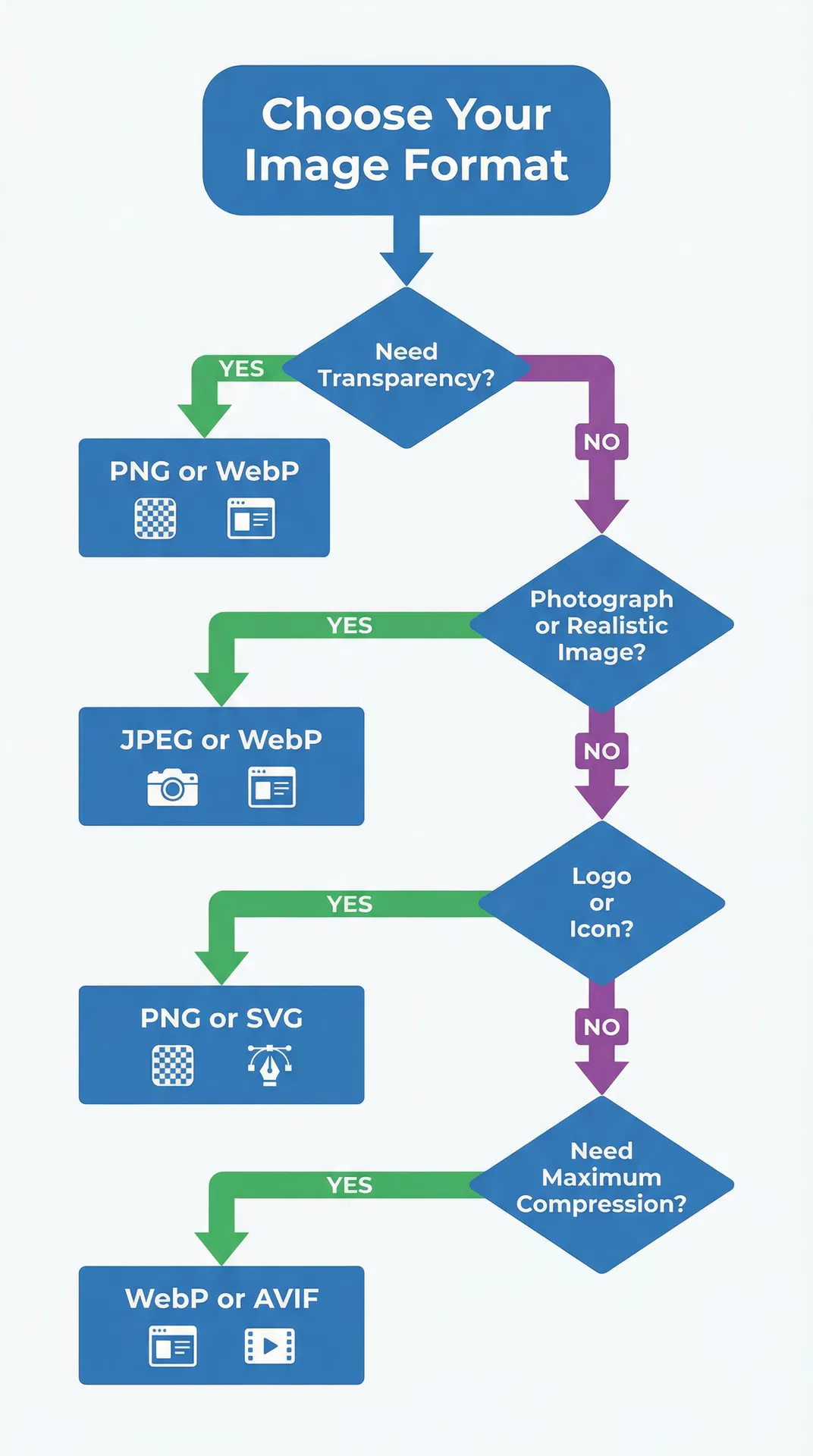
Export in the correct format. Use JPEG at 85% quality for photographs, PNG for graphics with text or transparency, and WebP where supported (all platforms except X/Twitter). TrustedToolkit's converter handles format conversion alongside resizing.
-
Compress the final files. Run each exported file through compression to minimize file size without quality loss. This step is especially important for Instagram (which compresses uploads aggressively) and Pinterest (where page load speed affects pin distribution).
Method 3: Template-Based Approach
For recurring content types (weekly quotes, product announcements, event promotions), create templates at each platform's dimensions using Canva, Figma, or Photoshop. Templates ensure consistent branding while eliminating the need to resize from scratch each time. Most design tools offer social media preset sizes that match the dimensions listed in this guide.
File Format and Compression Best Practices
Choosing the right file format is as important as getting the dimensions correct. Each format has specific strengths that align with different content types and platform requirements.
JPEG is the best choice for photographs and complex images with gradients. At 80-85% quality, JPEG provides excellent visual fidelity at small file sizes. Every social media platform supports JPEG, making it the universal safe choice.
PNG should be used for graphics with text, logos, screenshots, or any image requiring transparency. PNG files are larger than JPEG but preserve sharp edges and text clarity. Note that some platforms (including Etsy) don't support PNG transparency—always verify before uploading.
WebP offers 25-35% smaller file sizes than JPEG at equivalent quality. Instagram, Facebook, LinkedIn, Pinterest, and TikTok all support WebP uploads. However, X/Twitter does not currently support WebP, so you'll need JPEG or PNG for that platform. Convert between formats instantly with TrustedToolkit's free converter.
The compression step is critical because social media platforms apply their own compression to every uploaded image. Starting with an already-optimized file means the platform's compression has less work to do, resulting in a higher-quality final image. TrustedToolkit's compressor typically reduces file sizes by 40-80% while maintaining visual quality that's indistinguishable from the original.
Common Mistakes and How to Avoid Them
Uploading images that are too small. When you upload an image below a platform's minimum dimensions, the platform upscales it, causing visible blurriness and pixelation. Always start with images at or above the recommended dimensions.
Ignoring the safe zone for Stories and Reels. The top 14% and bottom 20% of Stories and Reels are covered by the platform's UI elements (username, caption, buttons). Keep critical content within the center 1080x1610 pixel "safe area" to prevent important elements from being obscured.
Using the same image everywhere without resizing. A single image cannot look optimal on every platform. The aspect ratio differences between Instagram (4:5), X/Twitter (16:9), and Pinterest (2:3) are too significant for a one-size-fits-all approach. Invest the time to create platform-specific versions.
Forgetting about mobile display. Over 80% of social media usage occurs on mobile devices. Always preview your images on a phone screen before posting. Text that's legible on a desktop monitor may be unreadable on a 6-inch phone screen.
Over-compressing before upload. Compressing an image to the smallest possible file size before uploading is counterproductive because the platform will compress it again. Aim for 80-85% JPEG quality or use a smart compression tool like TrustedToolkit's compressor that finds the optimal balance automatically.
Platform-Specific Tips for Maximum Engagement
Instagram: Use 4:5 vertical for feed posts to maximize screen real estate. For carousels, the first slide determines whether users swipe—make it compelling. All carousel slides must use the same aspect ratio.
Facebook: Optimize your Open Graph image (1200x630) separately from your post image, especially if your posts include links. The OG image appears in link previews and shared posts across the platform.
LinkedIn: Professional content performs best with clean, high-contrast images. Infographics at 1200x1200 (square) consistently generate the highest engagement on LinkedIn because they're easy to read in the feed.
Pinterest: Always use vertical images (2:3 ratio minimum). Add text overlays to your pins—Pinterest is a search engine, and text on images helps with both discoverability and click-through rates.
X/Twitter: The platform's timeline moves fast, so high-contrast images with bold elements perform best. Use 16:9 landscape for single images and 1:1 square for multi-image posts.
Frequently Asked Questions
What is the best universal image size for all social media?
There is no single size that works perfectly everywhere, but 1080x1080 pixels (1:1 square) is the closest universal option. Every major platform supports square images, and they display acceptably (though not optimally) across Instagram, Facebook, X/Twitter, LinkedIn, and Pinterest. For the best results on each platform, create platform-specific versions using the dimensions in this guide.
Does resizing images reduce their quality?
Resizing images down (making them smaller) generally preserves quality well because you're removing pixels rather than creating new ones. Resizing up (making them larger) causes quality loss because the software must interpolate new pixel data. Always start with the largest version of your image and resize downward for each platform.
What file format should I use for social media images?
Use JPEG at 80-85% quality for photographs and complex images. Use PNG for graphics with text, logos, or transparency. Use WebP when the platform supports it (all major platforms except X/Twitter) for the best quality-to-size ratio. TrustedToolkit's free converter handles all format conversions instantly.
How do I resize images without losing quality?
The key is to start with a high-resolution source image (at least 2000x2000 pixels) and resize downward. Use a tool that employs bicubic or Lanczos resampling algorithms rather than simple nearest-neighbor scaling. After resizing, apply smart compression that reduces file size without visible quality degradation—TrustedToolkit's compressor does this automatically.
Why do my images look blurry after uploading to Instagram?
Instagram compresses every uploaded image regardless of its original quality. The most common causes of excessive blurriness are: uploading images below 1080 pixels wide, using aggressive JPEG compression before uploading, or uploading in a non-sRGB color profile. Start with images at exactly 1080 pixels wide in sRGB color space, and let Instagram handle the final compression.
How often do social media image sizes change?
Platform specifications change 1-3 times per year on average. Instagram updated its recommended sizes three times between 2024 and 2026. Major changes typically coincide with app redesigns or new feature launches. Bookmark this guide and check back before major campaigns to ensure you're using current specifications.
Can I use the same image for Instagram and Pinterest?
Not optimally. Instagram's best-performing format is 4:5 vertical (1080x1350), while Pinterest's optimal format is 2:3 vertical (1000x1500). The aspect ratios are close but different enough that using one for both will result in suboptimal display on at least one platform. Create separate versions for the best results on each.
What tools can I use to resize images for free?
TrustedToolkit offers free browser-based image resizing, conversion, and compression with no account required. For batch processing, you can upload multiple images and convert them to the correct dimensions for any platform. Other free options include Canva (with templates), Photopea (Photoshop alternative), and each platform's built-in creator tools.
Start Optimizing Your Social Media Images
Properly sized images are the foundation of effective social media marketing. The dimensions in this guide represent the current best practices as of March 2026, and following them ensures your content displays at its best across every platform.
For the fastest workflow, use TrustedToolkit's free image tools to resize, convert, and compress your images in seconds. The image converter handles format changes and resizing, while the compressor optimizes file sizes for faster uploads and better post-compression quality. Both tools work directly in your browser with no account or software installation required.
Ready to optimize your social media images? Try TrustedToolkit's free image tools now — resize, convert, and compress in seconds.